Upload and view problems
The My Schedule menu entries are missing in Asprova
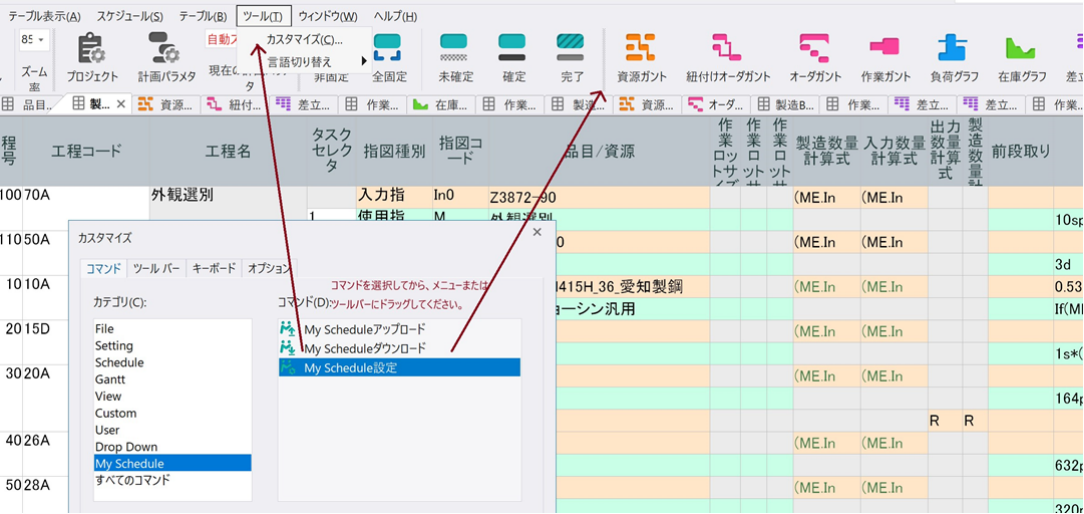
The My Schedule menus are hidden while a custom menu is in use — that is, while [Custom menu] at the bottom of the [View] menu is ticked.
Either disable the custom menu, or add the My Schedule menus to the custom menu you use:
Open [Tools] → [Toolbars and shortcut keys] from the menu bar to launch the Customize dialog, and drag and drop the My Schedule menus where you want them.
The view I want to upload is greyed out
Sign in to Asprova My Schedule with the administrator account and check that the view is ticked for the project in question.
Uploading requires Project Admin or Server Admin permission. Accounts with result-input or read-only permission cannot upload. To change permissions, sign in to Asprova My Schedule with one of the permissions above and change them there.
To bring results entered in the browser back into Asprova, run [File] → [Asprova My Schedule ▶] → [Data download] from Asprova's menu bar. Download is available on the Free and Standard plans; it cannot be used on the Viewer plan.
The style I selected is not displayed
Check that you saved the style after arranging the display in Asprova's Gantt chart or table.
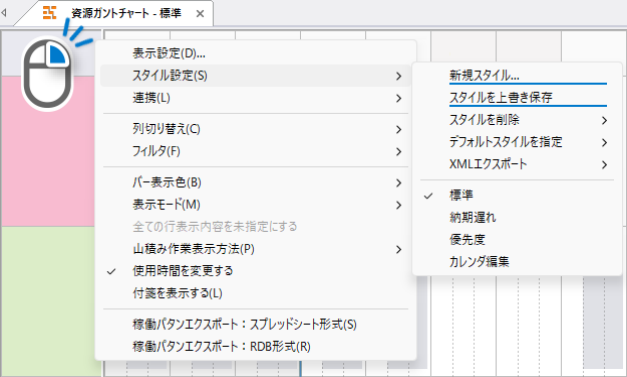
To save a style, right-click at the top left of the chart or table and choose [Style settings] → [New style...] or [Overwrite style].
If a style that a view was configured to upload has since been renamed or removed, the plugin warns you when you upload, so the mismatch does not go unnoticed. Re-select the style in the connection settings.
The browser still shows the old version after updating
With My Schedule open in the browser, hold Ctrl and press F5.
If the old version is still displayed, reset the cache in your browser's settings.