Connection problems
The sign-in page does not appear in the browser
You cannot connect if the port number you configured is already in use by another application.
Set the port to something other than 80 — 5001, for example — stop and restart My Schedule, then try again with the new port number in the browser address as well.
If you still cannot connect, check the following.
-
Check that the WS Control Panel is running and that My Schedule has been started.
-
Check that you are connecting to the same address as the Host (IP) : Port number shown on the WS Control Panel's [Settings] tab.
-
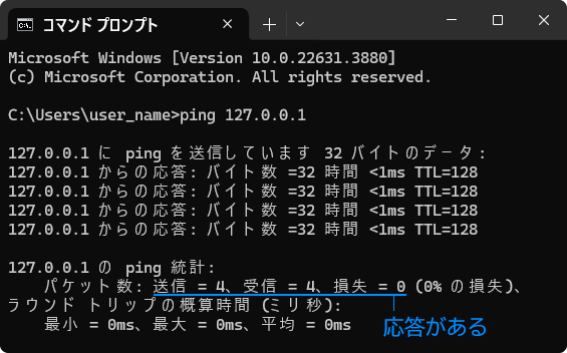
To find out what is blocking the connection, open a command prompt, type
pingfollowed by the IP address or URL you are connecting to, and press Enter.
If there is a reply, the network reaches the server. Check the username and password you entered once more. It is also possible that ping gets through but the port you configured is being blocked by the firewall — try a different port number.
If there is no reply, the server cannot be reached: check your network and firewall settings. Also open Asprova's [Help] → [Plug-in Information]; if
AsMySchedule.dllis missing from the module list, check that the plugin file is in the same directory as Asprova itself.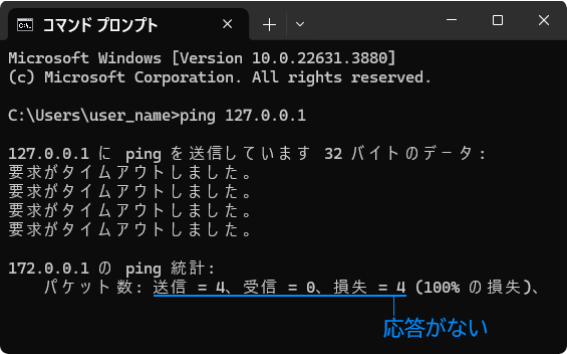
-
Check that the port number does not conflict with another application, and open the port in your firewall settings.
Opening the port in Windows Defender Firewall
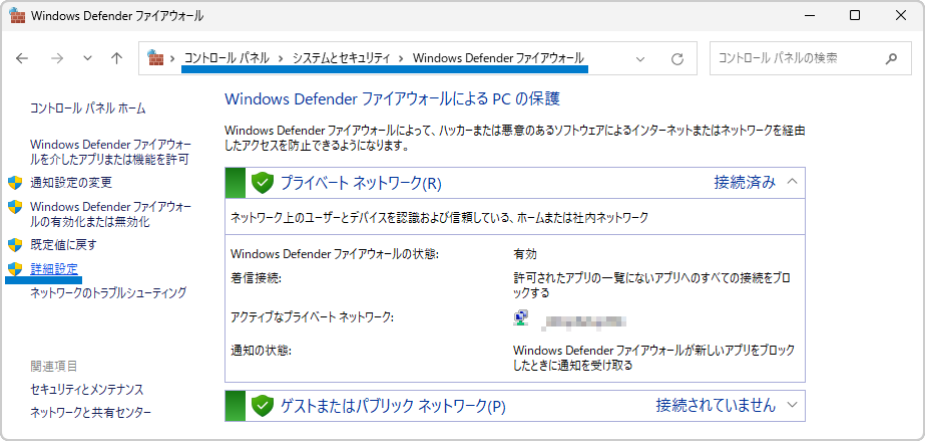
Open [Control Panel] → [System and Security] → [Windows Defender Firewall] and choose [Advanced settings].
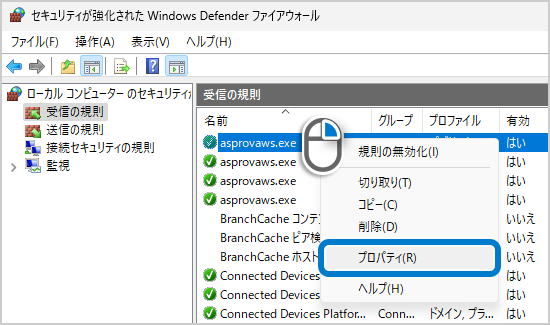
In the advanced settings window, find AsprovaWS.exe under Program.
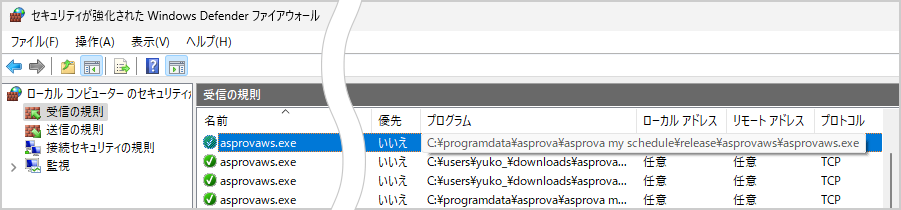
Right-click the AsprovaWS.exe row and choose [Properties].
Select the [Protocols and Ports] tab and, under Local port, either choose [All Ports] or choose [Specific Ports] and enter the port number.
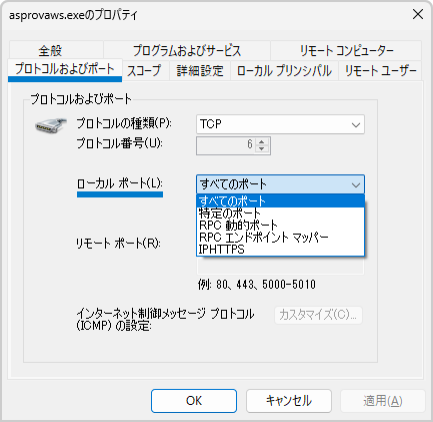
That opens the port for Asprova My Schedule.
The plugin cannot connect
Check that the connection settings in Asprova use the same Host (IP) and Port number as the WS Control Panel's Settings tab.