Active Directory authentication
Asprova My Schedule can work with Active Directory, using it for user management and sign-in authentication.
Configure the connection
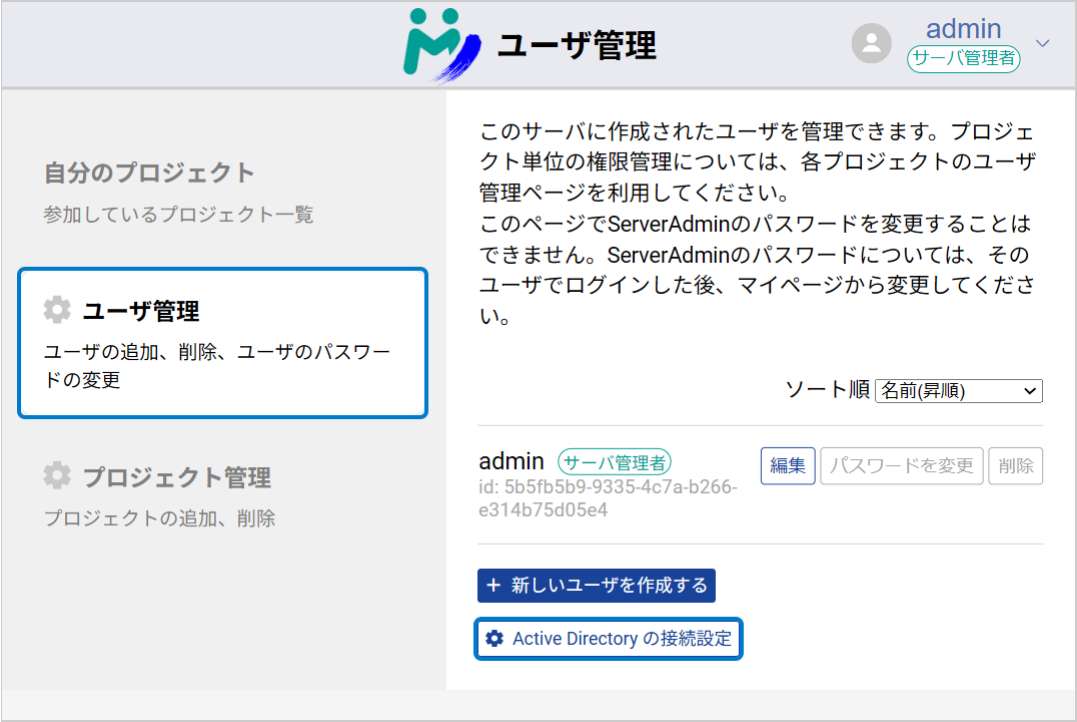
Sign in to My Schedule with the administrator account, press [User management], and press [Active Directory connection settings] at the bottom of the user management screen.
The Active Directory connection settings dialog appears. Enter the Active Directory URL, the Base DN, a username and a password.
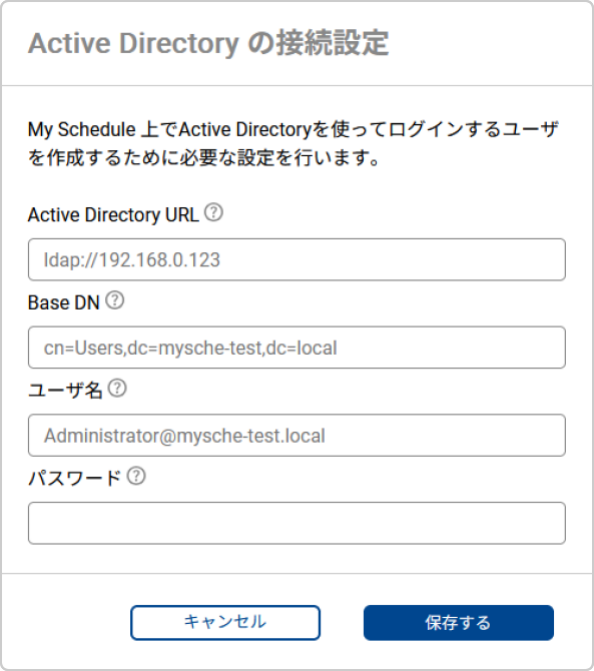
The username and password are required. They are used in the next step, when registering an Active Directory user, to check whether that user exists in Active Directory.
Enter the credentials of an Active Directory user that exists under the Base DN.
Press [Save] to finish.
Register an Active Directory user
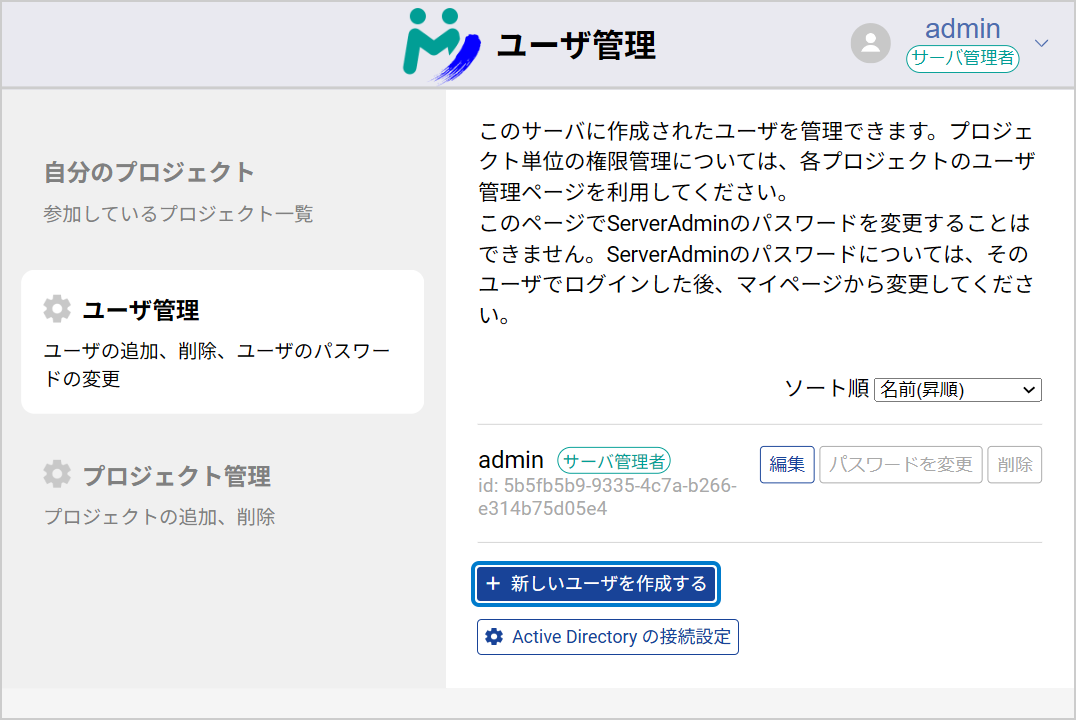
On the user management screen, press [+ Create new user] to open the new-user dialog.
Once the Active Directory connection is configured, the [Active Directory user] option becomes selectable. Enter the Active Directory user's username and press [Create].
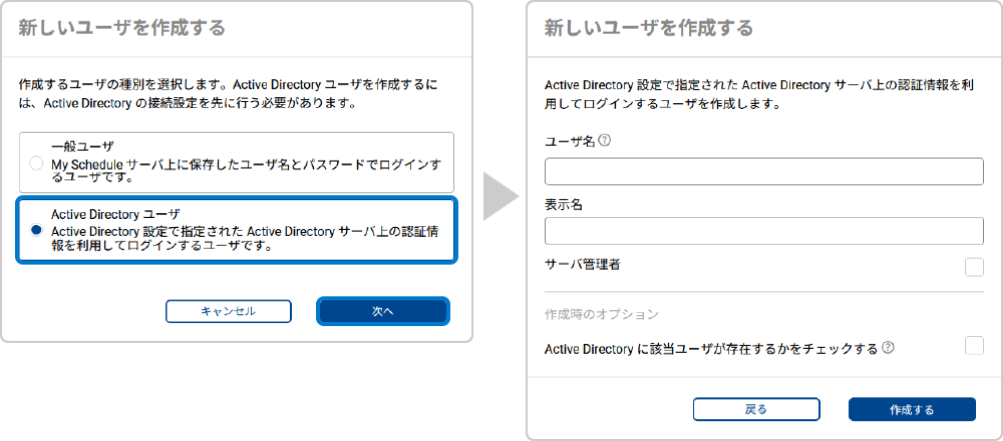
The username has to match the UserPrincipalName registered in Active Directory exactly. When the user signs in, however, they may also use their sAMAccountName.
With Check that the user exists in Active Directory turned on, creation fails with an error message if the user does not exist. With it off, that check is skipped.
Finding the registered username
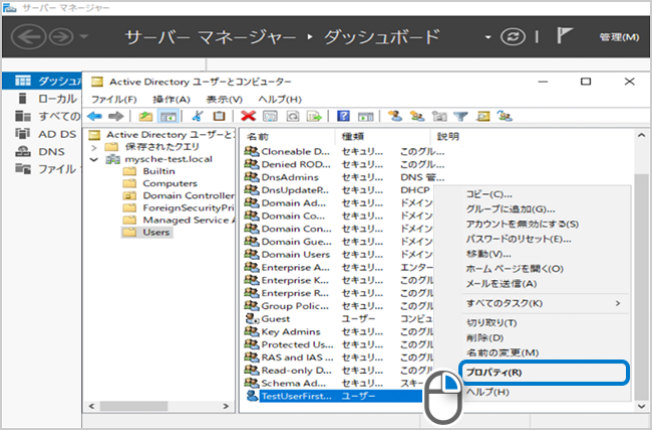
Open Active Directory Users and Computers from Server Manager, right-click the user and choose [Properties].
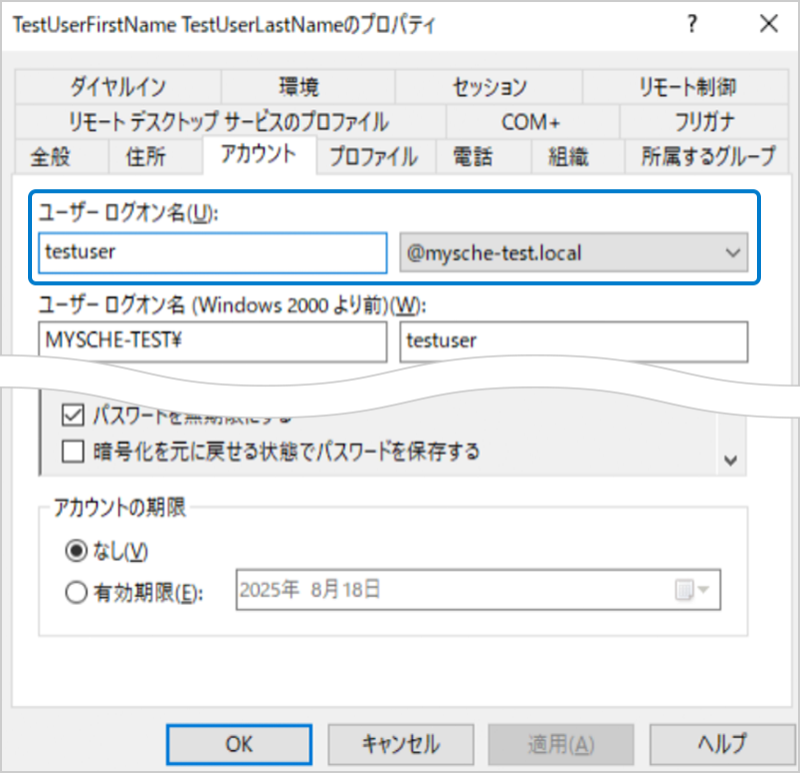
The User logon name shown there, plus the domain name, is the username to enter in My Schedule.
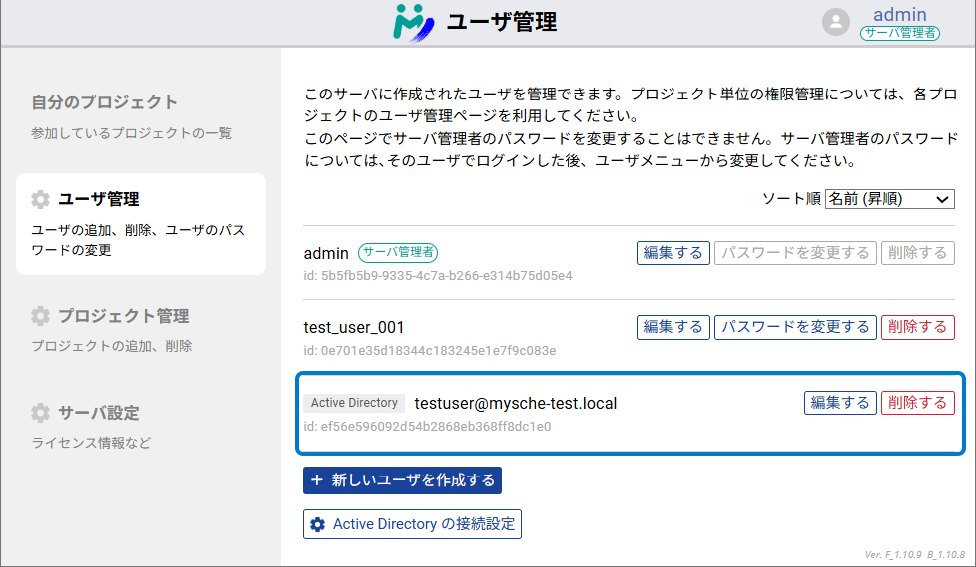
Created correctly, the username appears in the user list labelled Active Directory.
Signing in
Once the Active Directory connection has been configured, the sign-in page offers a choice of login method. It shows Current login method below the sign-in button, with a link to switch:
- Use Active Directory instead — authenticate with your organization's domain account.
- Use local account instead — authenticate with an account created on this server.
Switch the method to Active Directory, enter the Active Directory username and its password, and sign in.
The choice of login method appears only once the Active Directory connection settings have been completed. On a server without them, the sign-in page just signs you in with a local account.
You can also preselect the method with a query parameter — ?method=active-directory or
?method=local — which is handy for a shortcut or a shared link. (Available from 26.1.10.)
This is how the sign-in page works from 26.1.3 onwards. In 26.1.2 and earlier it had two separate buttons, [Login] and [Login with Active Directory], and you pressed the one you wanted rather than choosing a method first.