Collect results
On the Standard and Free plans, results can be entered from My Schedule. Try entering one and downloading it into Asprova.
Enter a result
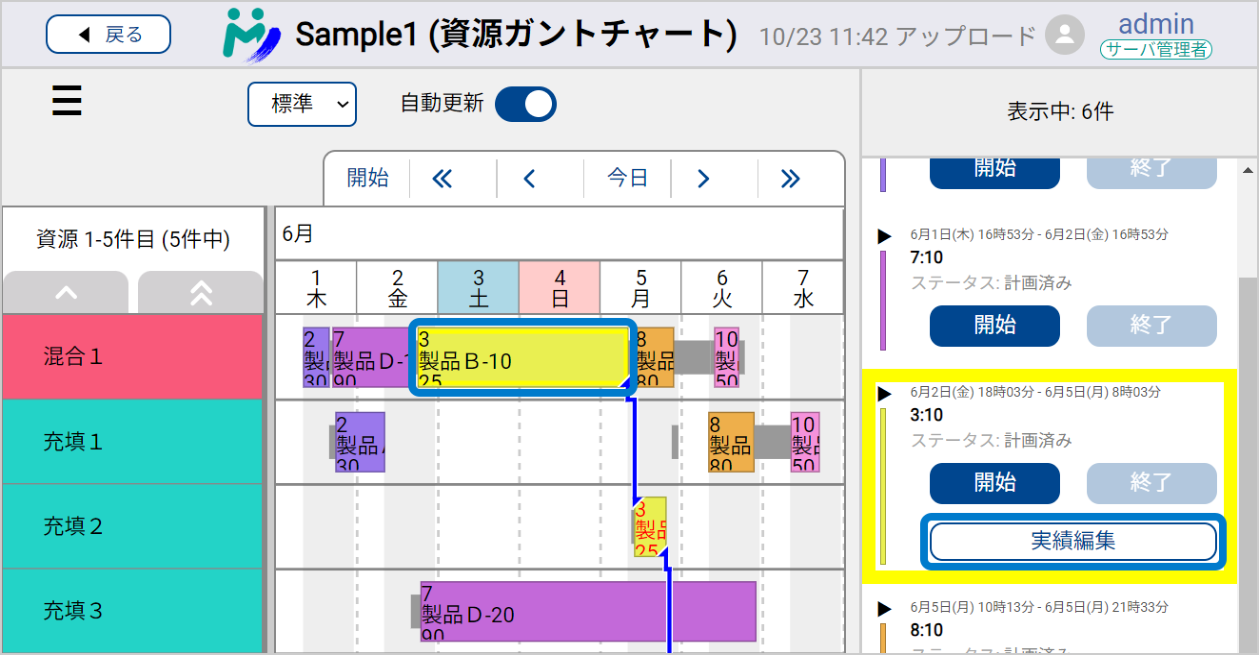
Select any operation on the Resource Gantt Chart in the browser. The operation you selected is highlighted in the timeline on the right of the window, and the result entry buttons appear.
This guide uses the [Edit result] button as its example.
Select the operation on the Resource Gantt Chart and press [Edit result] in the timeline.
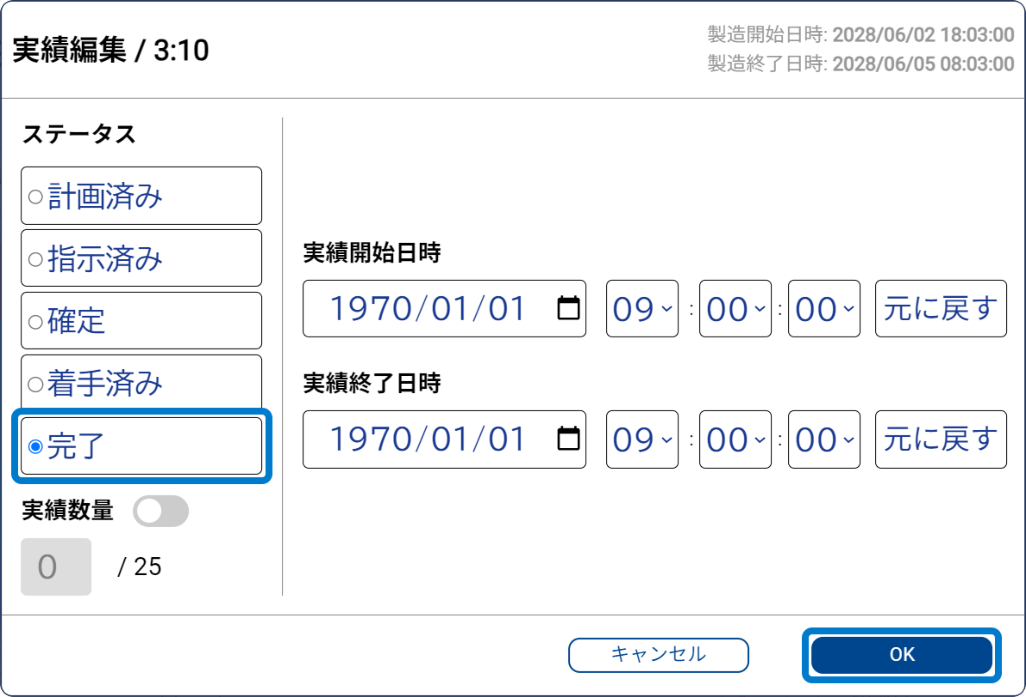
In the result editing window, select [Finished] under Status and press [OK].
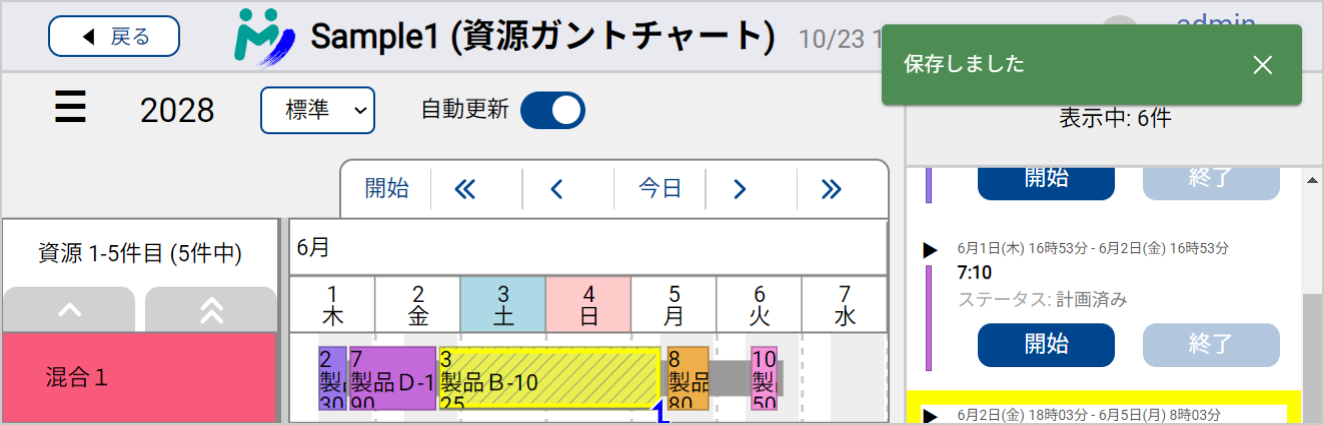
The result has been entered once the operation's bar is shown with diagonal stripes.
There are other ways to record results — the Start and Finish buttons, the Dispatching View, the Operation Table, and CSV import among them. See Results.
Download it into Asprova
Now download the result you entered in My Schedule into Asprova.
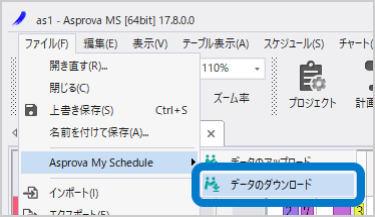
In Asprova's menu bar, choose [File] → [Asprova My Schedule] → [Data download].
Download is available on the Free and Standard plans. It cannot be used on the Viewer plan.
If the My Schedule entries are missing from the menu, see The My Schedule menu entries are missing.
Once the result is downloaded, Asprova's own Resource Gantt Chart shows diagonal stripes on the operation's bar too — the result has come through.
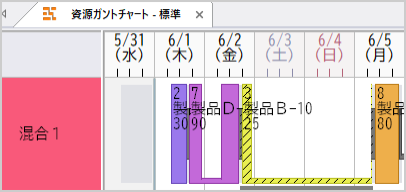
That completes the round trip: plan in Asprova → view in My Schedule → result in My Schedule → back into Asprova.
Finally, let the people who need the plan see it: Share with your users.